Download Linux, BSD and rescue-tool ISOs straight onto your Ventoy USB drive, and keep every one of them up to date — all from one window.
What it does
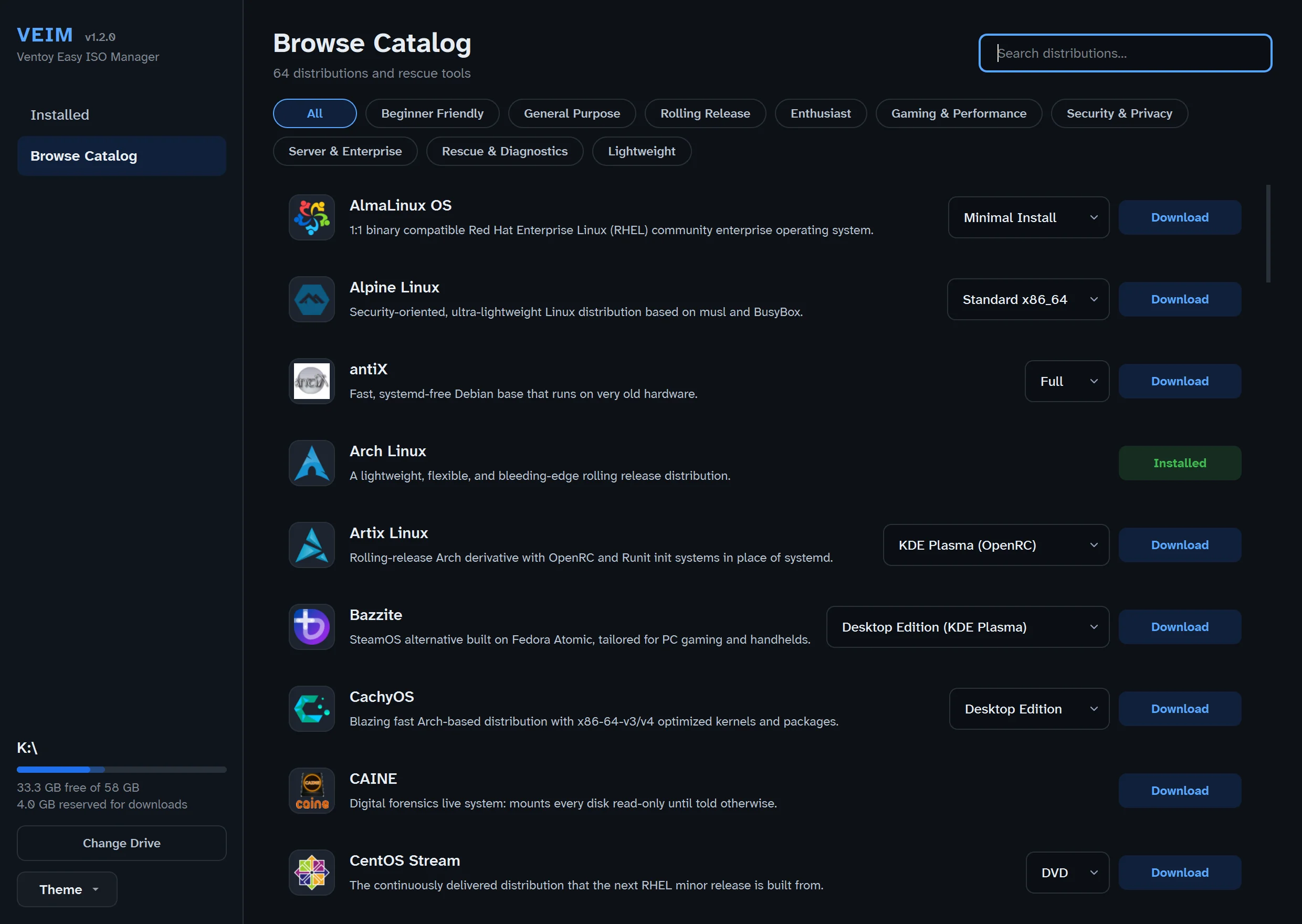
Builds your drive. Browse a catalog of 64 distributions and tools — 225 editions between them — and download any of them straight onto the drive. No download pages, no mirror lists, no copying files around afterwards.
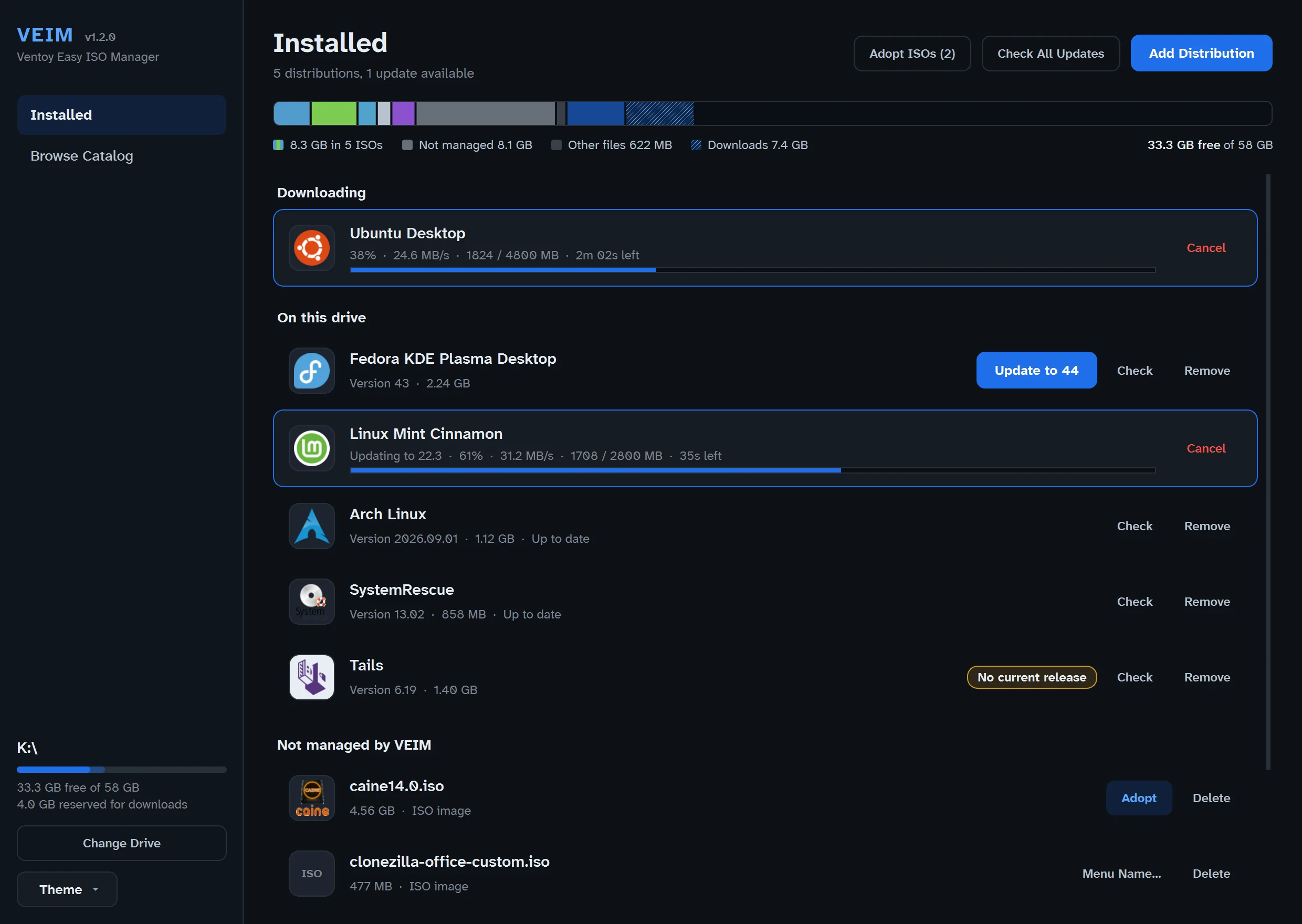
Keeps it current. One click checks every ISO VEIM manages against the project that publishes it. Anything with a newer release gets an Update button that downloads the new version and swaps it in.
Looks after what's there. ISOs you copied onto the drive yourself can be adopted and kept up to date too. The Ventoy boot menu gets readable names — Linux Mint Cinnamon 22.3 instead of linuxmint-22.3-cinnamon-64bit.iso.
Ventoy is a separate tool that you install onto the USB drive once, from its own site. VEIM manages the ISO files on that drive. It never formats, partitions or reflashes anything.
Get VEIM
Pick the file for your system from the latest release. Nothing else is needed.
| System | File |
|---|---|
| Windows | VEIM-x.y.z-windows-setup.exe installs for your user only, so there is no administrator prompt. Prefer not to install? VEIM-x.y.z-windows-portable.zip runs from wherever you unpack it. |
| macOS | VEIM-x.y.z-macos-arm64.dmg for Apple Silicon, -x86_64.dmg for Intel. Open it and drag VEIM to Applications. |
| Linux | VEIM-x.y.z-x86_64.AppImage. Make it executable (chmod +x) once, then double-click. |
Releases are not code-signed — a certificate costs a few hundred dollars a year, and this is a free tool. Every release ships SHA256SUMS.txt if you want to verify what you downloaded.
Windows: SmartScreen shows "Windows protected your PC". Click More info, then Run anyway. macOS: right-click VEIM in Applications, choose Open, confirm. Double-clicking works from then on.
VEIM checks for a new release of itself when it starts. If there is one, it asks once — Download, Skip This Version, or Remind Me in a Week — and closing the dialog simply means not now.
Getting started
- Plug in the Ventoy drive and open VEIM. It lists the removable drives it can see and marks the Ventoy ones. Pick yours, or Browse Folder… to it. A freshly made drive and one you have been using for years both work.
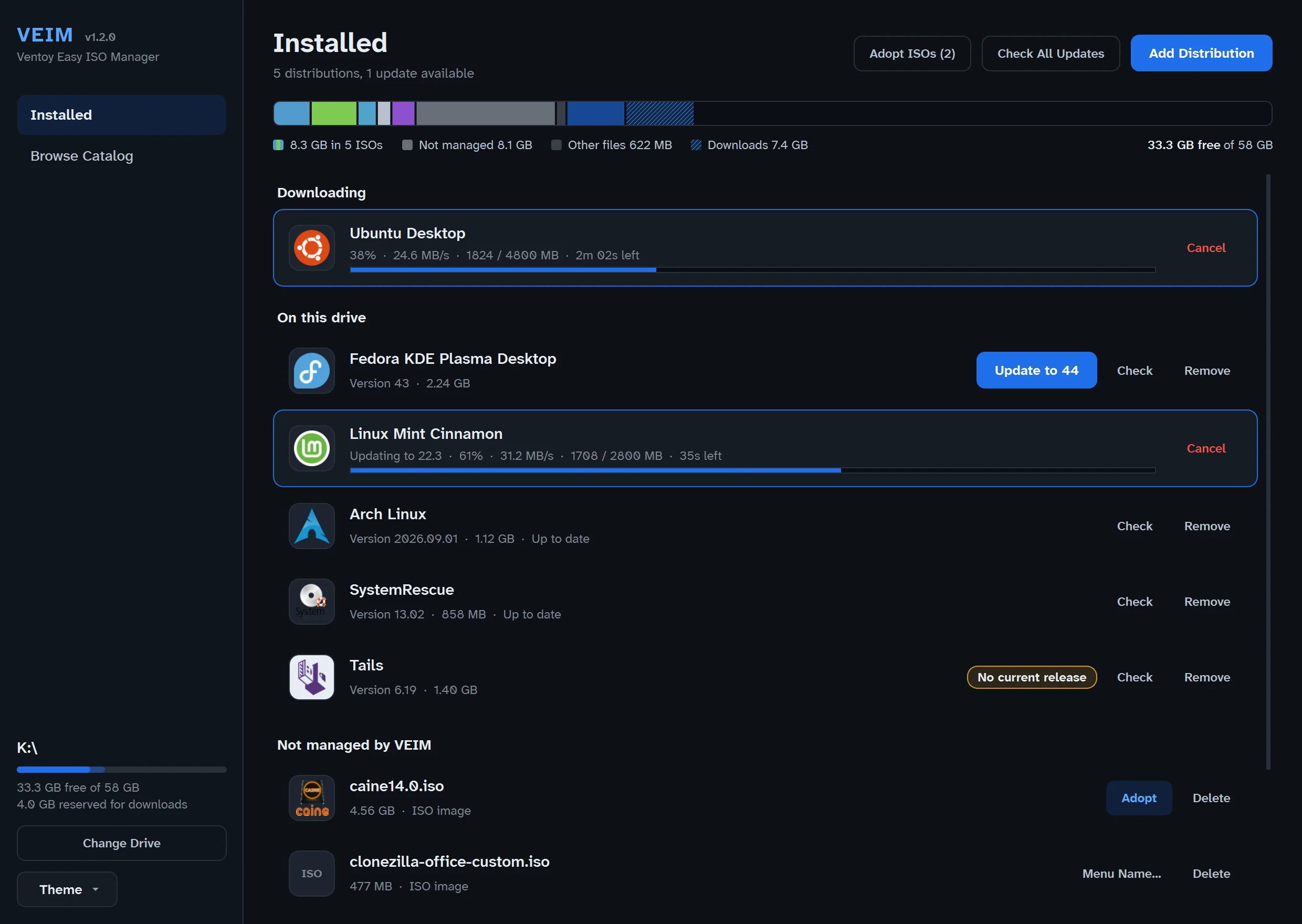
- Installed shows what is on the drive. If there are ISOs you copied there yourself, an Adopt ISOs button offers to take over the ones VEIM recognises, so they can be checked and updated like the rest. Every image VEIM does not manage is listed under Not managed by VEIM: the ones it recognises can be adopted from their own row, the rest given a name in the boot menu, and any of them deleted.
- Browse Catalog — find something, choose an edition, press Download. The ISO lands on the drive, ready to boot. Queue as many as you like.
- Come back any time and press Check All Updates. Anything with a newer release gets an Update button; one click replaces it.
The catalog
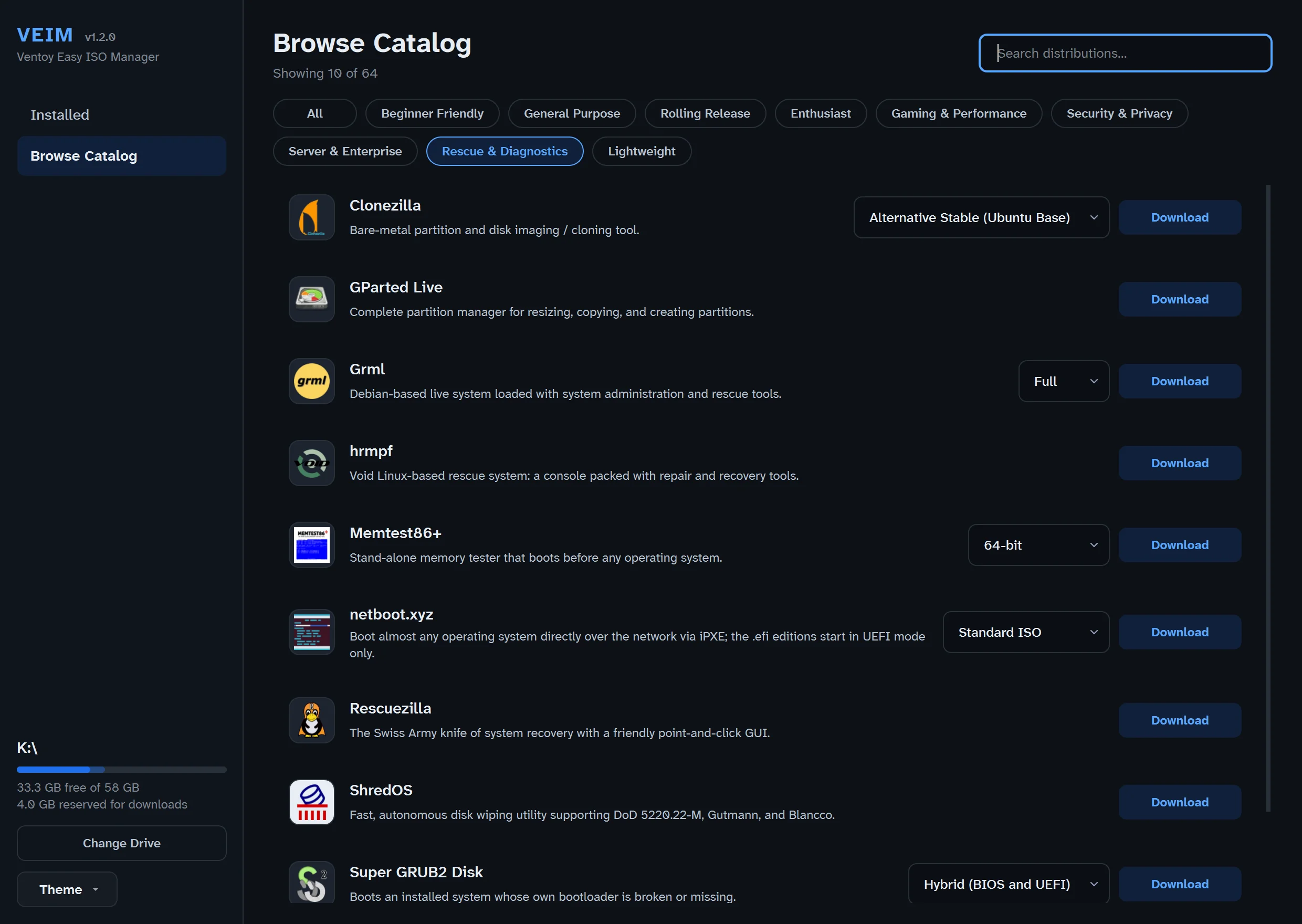
64 distributions and tools, 225 editions, in nine categories: Beginner Friendly, General Purpose, Rolling Release, Enthusiast, Gaming & Performance, Security & Privacy, Server & Enterprise, Rescue & Diagnostics, and Lightweight.
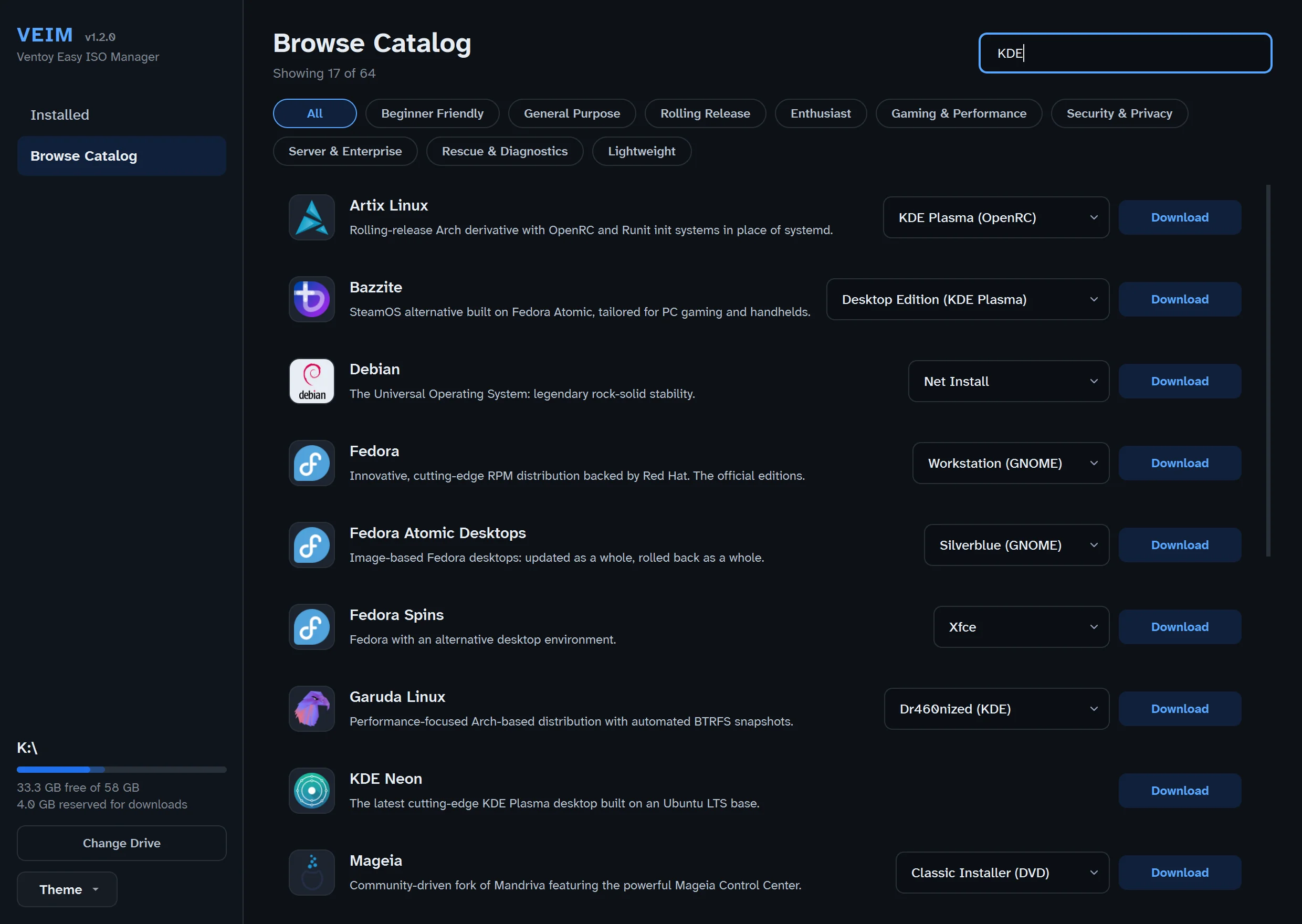
- Search matches names, descriptions and edition names, so typing
KDEfinds every KDE edition of every project, andnet installevery network installer. - One row per project. The editions are in a selector on the row — Ubuntu's twelve flavors, Debian's nine images, Proxmox's four products — instead of cluttering the list. Fedora has thirty-one images, so it gets four entries, split the way fedoraproject.org splits them: Editions, Atomic Desktops, Spins and Labs.
- Download starts right there and shows progress on the row, so you can keep browsing and start the next one. Several downloads run at once.
- An edition that is already on the drive shows Installed; its updates come from its row in the library.
| Category | Distributions |
|---|---|
| Beginner Friendly | elementary OS, FydeOS, Linux Lite, Linux Mint, Pop!_OS, TUXEDO OS, Ubuntu, Zorin OS |
| General Purpose | Debian, Fedora, Fedora Atomic Desktops, Fedora Labs, Fedora Spins, KDE Neon, Mageia, MX Linux, openSUSE |
| Rolling Release | Arch Linux, Artix Linux, EndeavourOS, Manjaro, Omarchy |
| Enthusiast | Devuan, Gentoo, NixOS, Slackware, Void Linux |
| Gaming & Performance | Bazzite, CachyOS, Garuda Linux, Nobara Project, PikaOS |
| Security & Privacy | CAINE, HackerOS, Kali Linux, Parrot OS, Qubes OS, Tails |
| Server & Enterprise | AlmaLinux OS, CentOS Stream, FreeBSD, IPFire, openEuler, Oracle Linux, Proxmox, Rocky Linux, Talos Linux, XCP-ng |
| Rescue & Diagnostics | Clonezilla, GParted Live, Grml, hrmpf, Memtest86+, netboot.xyz, Rescuezilla, ShredOS, Super GRUB2 Disk, SystemRescue |
| Lightweight | Alpine Linux, antiX, Puppy Linux, Q4OS, SparkyLinux, Tiny Core Linux |
Two things are left out on purpose. Kali's Live and Everything images are torrent-only, so there is nothing to download from. And images whose filename never changes between releases — Bazzite's -stable, netboot.xyz.iso, anything -latest — download and update fine through the catalog, but a copy already on a drive can't be told apart from an older one, so those are never offered for adoption.
Missing a project? Adding one is a small, well-trodden job — CONTRIBUTING.md walks through it.
Keeping the drive up to date
Check All Updates asks every project on the drive for its current release, all at once. Each row then shows one of four states:
| State | Meaning |
|---|---|
| Up to date | The version on the drive is what the project publishes now. |
| Update to 44 | There is a newer release. The row's button names it, and pressing it downloads that release. |
| Newer than 43 | The drive holds a later release than VEIM can find — a beta you fetched yourself, say. Nothing is offered, because it would be a downgrade. |
| No current release | The project's download page couldn't be read just now: a mirror is down, or the page has changed. The ISO is fine to boot. VEIM says this instead of guessing. |
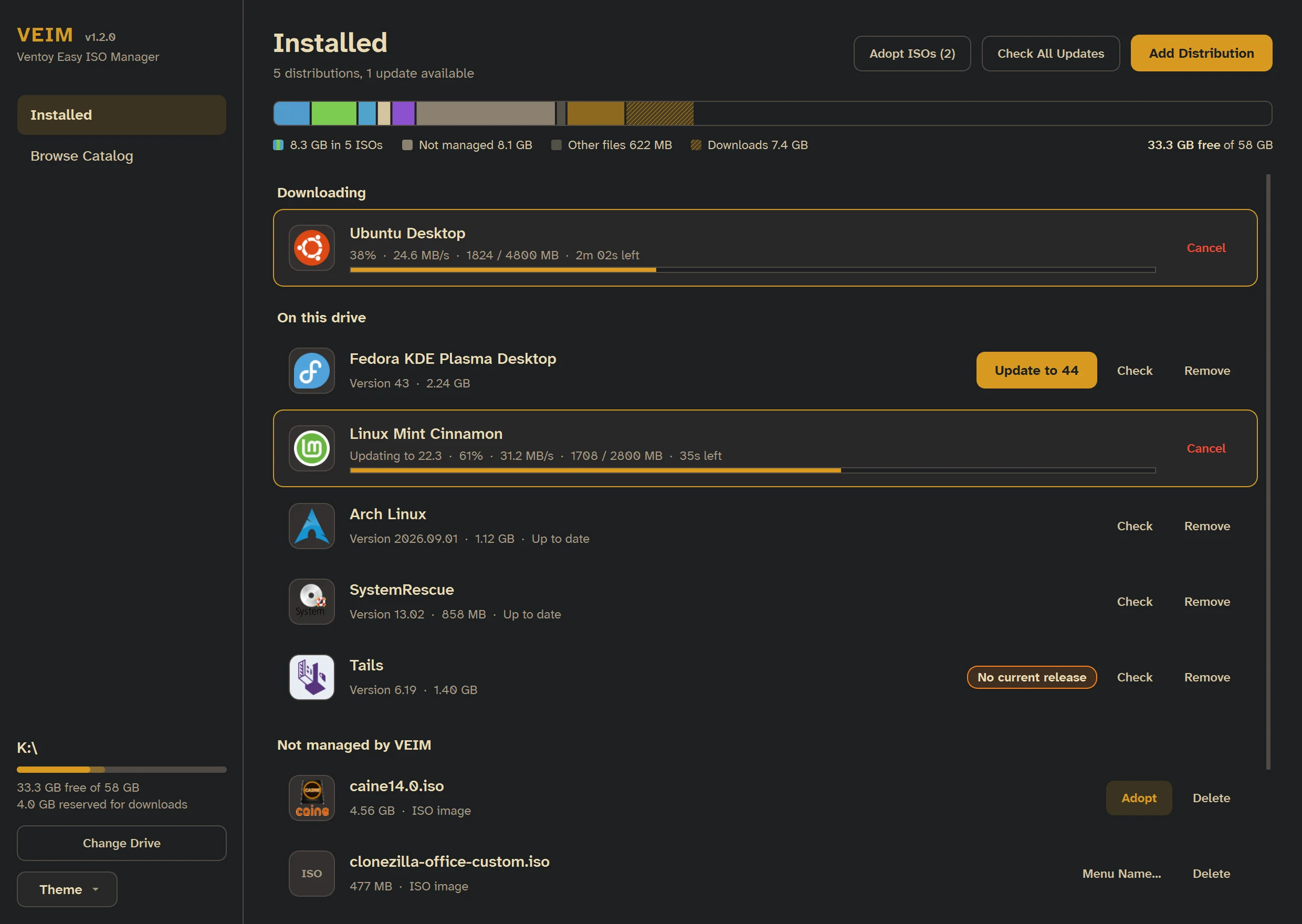
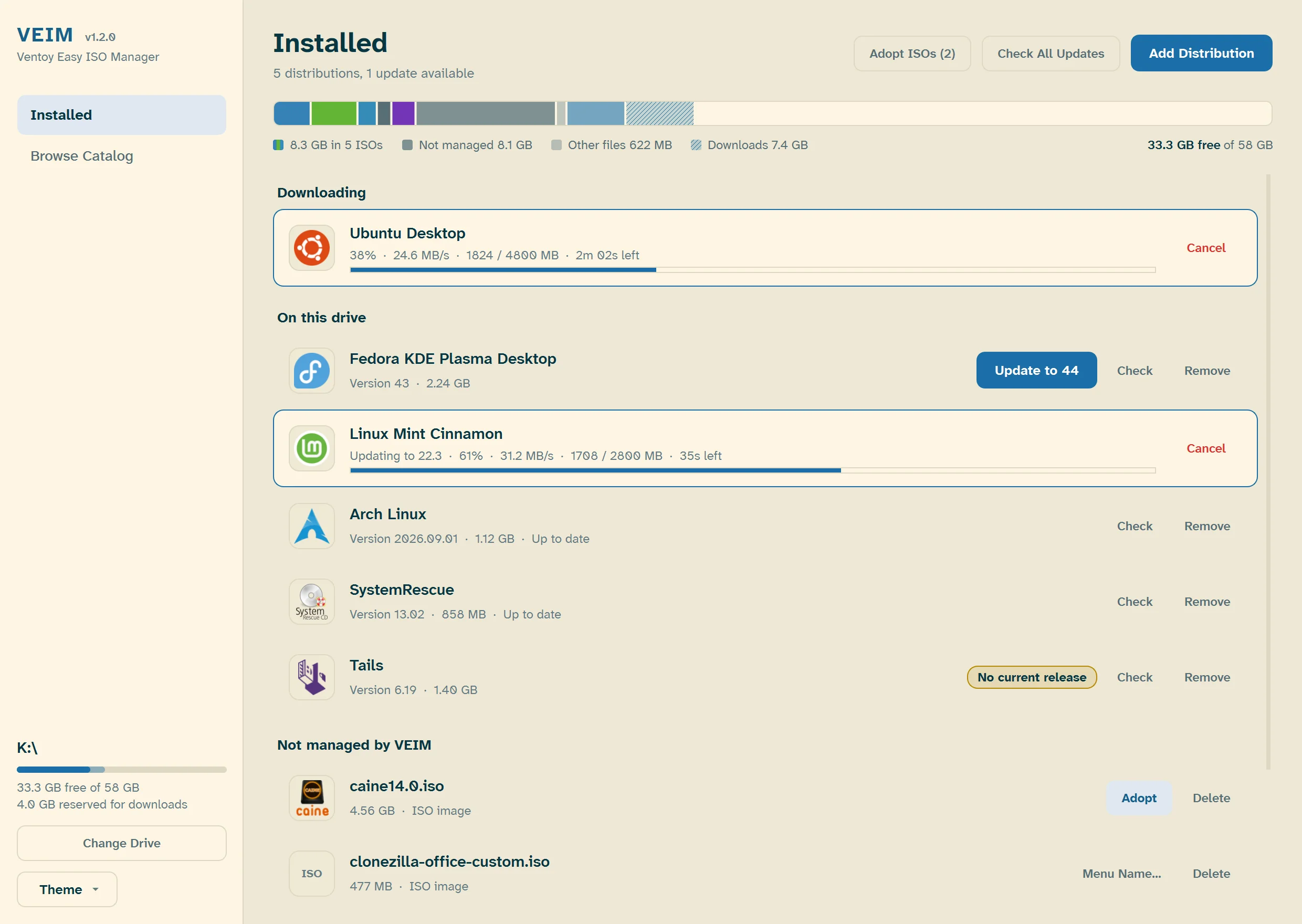
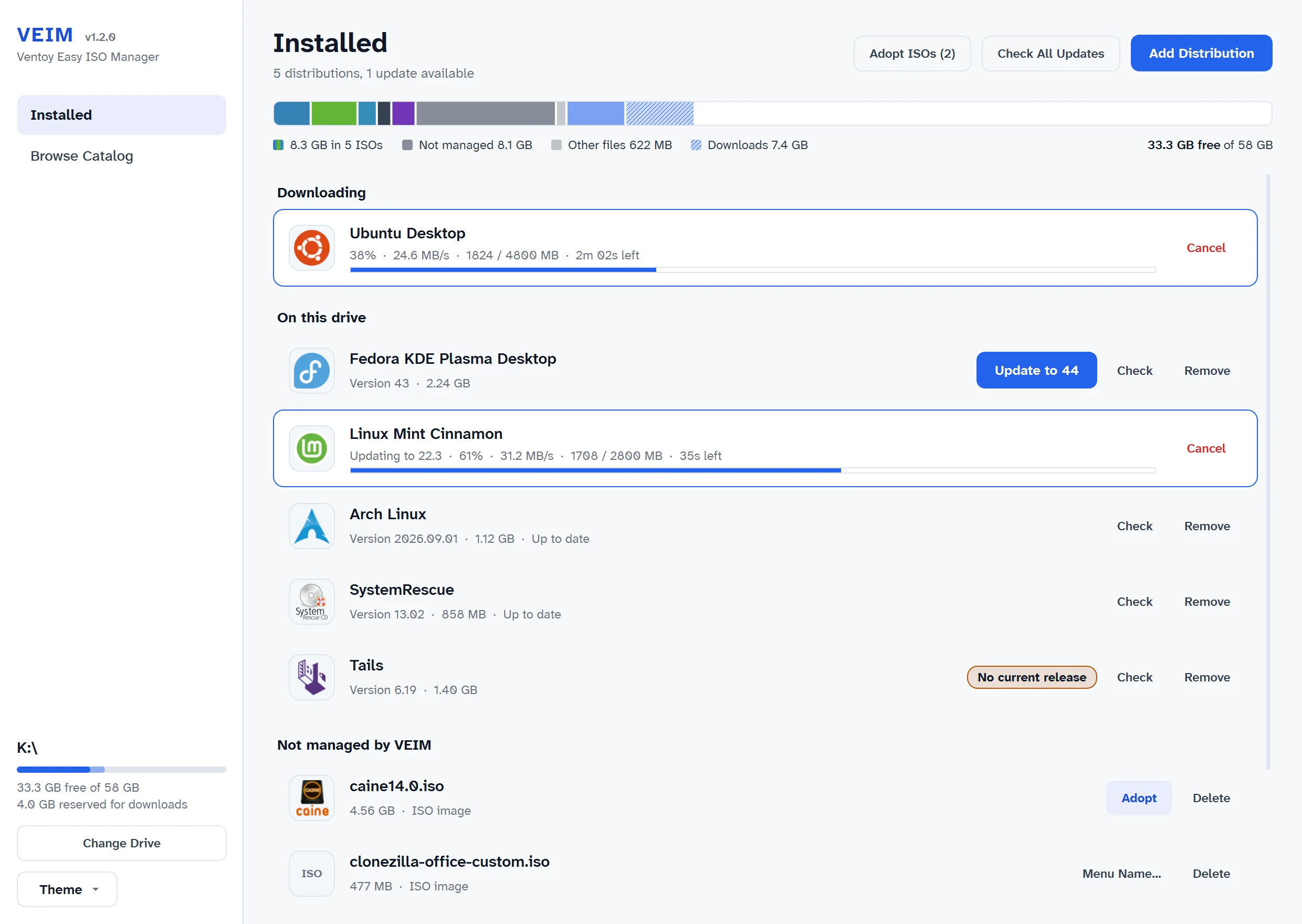
Above the list, the drive map shows the drive to scale: a block for each ISO, as wide as its file and coloured like its logo, then the images VEIM doesn't manage, everything else on the drive, what downloads in progress have written so far and still need (hatched), and what is free.
The update button downloads the new release and replaces the old one, with progress and a Cancel button on the row itself. When a mirror does not say how big the file is, the row reads N/A% and counts the megabytes received. The old ISO stays on the drive and bootable until the new file has fully arrived and been verified; only then is it swapped in and the old one removed.
ISOs you already have
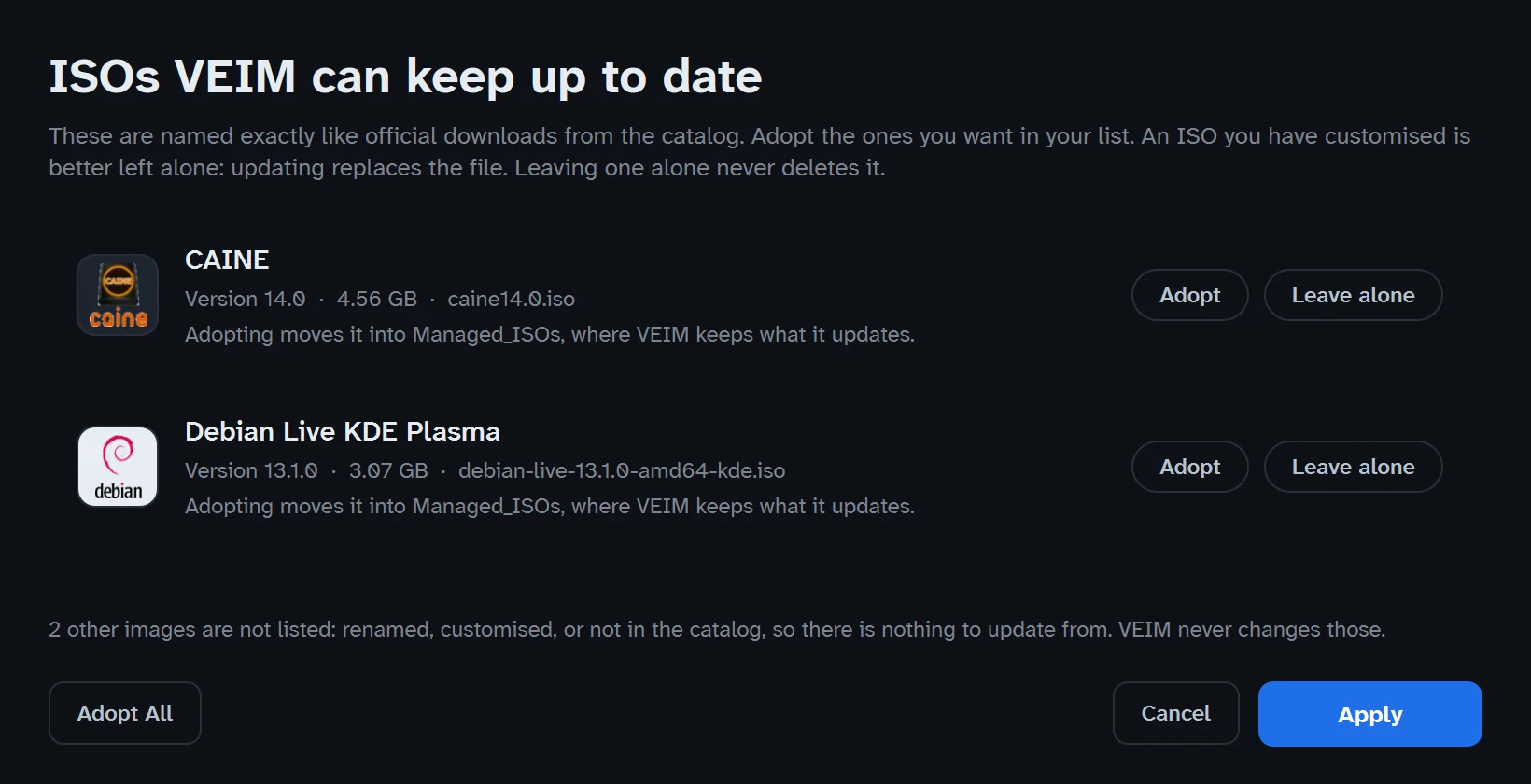
Outside Managed_ISOs/, VEIM doesn't take over ISOs on sight. When it finds files it recognises — named exactly the way the project itself names that download — the library shows an Adopt ISOs button with a count, and you decide.
- Adopt — it joins the list, checked and updated like anything VEIM downloaded. A file anywhere else on the drive is moved into
Managed_ISOs/, where VEIM keeps what it updates. - Leave alone — VEIM stops asking about it. It stays in the Not managed by VEIM list below the library, where Adopt on its row changes your mind.
- Decide later — it comes up again next time.
A renamed, customised or unrecognised ISO is never adopted or updated: it boots as usual. That's deliberate: a customised Clonezilla mistaken for the official one would be "updated", which means overwritten, at the next check.
Managed_ISOs/ holds only what VEIM manages
Whatever else turns up in Managed_ISOs/ — left there by an earlier version of VEIM, or dropped in by you — is sorted out when VEIM opens the drive, and again whenever you come back to the VEIM window. An image VEIM recognises and can update is adopted. Everything else — an image it does not recognise or that you chose to leave alone, any other file, any folder of your own — moves to the root of the drive, where Ventoy boots it just the same. A file that changed in the last minute is left for the next pass, since it may still be copying, and a file of the same name already in the root is never overwritten: the newcomer becomes name (2).iso. A dialog then lists each file, what was done with it and why.
Images VEIM doesn't manage
Ventoy searches the whole drive, so everything else it boots — ISO, WIM, IMG, VHD(X), .vtoy and .efi files, in the root or any folder — is listed under Not managed by VEIM, below the library and on the drive map. Folders Ventoy skips (trash folders, any holding a .ventoyignore) are skipped here too. VEIM never checks or updates these, but each row can:
- Adopt — shown when VEIM recognises the file, as in the dialog above.
- Menu Name… — set the name Ventoy's boot menu shows, written to
ventoy/ventoy.json. Only for files VEIM does not recognise: everything VEIM manages is named for its distro, edition and version, and renamed with each update. - Delete — remove it from the drive, after asking.
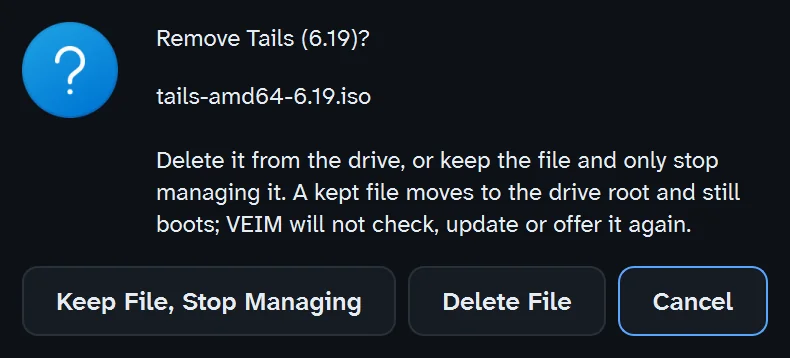
Remove on any installed row asks which you mean: Delete File, or Keep File, Stop Managing. That's also the way out for an ISO adopted by mistake.
Downloads you can rely on
- Resumable. Downloads stream to a
.partfile. If the connection drops, VEIM waits and reconnects — 2, 5, 10, then 20 seconds — and resumes from where it stopped. A link that keeps dropping but keeps delivering is never given up on; only four retries in a row that get nowhere end in a failure. Close VEIM and the transfer picks up next time you press the button. Only cancelling on purpose throws the partial file away. - Verified. Where a project publishes a SHA-256, the finished file is checked before it becomes a
.iso. A mismatch is deleted, and the row tells you. - Space-checked. Free space is confirmed before a single byte is written, counting what the downloads already running still have to write — six transfers started at once cannot overfill the drive between them. When an update would fit only in the old ISO's place, VEIM asks before deleting the old one first, and says plainly that a download that then fails leaves neither on the drive.
- Always the current release. VEIM never downloads from a URL it remembered. Every transfer starts by reading the project's own release page at that moment and taking its current release — the newest by version number, never a hardcoded folder, never an older release that happened to be reachable when the current one wasn't. Where a project keeps a
latestlink pointed at its release (NixOS, Garuda), VEIM follows it to the versioned file and records that version. - Bootable as delivered. Memtest86+ ships its image inside a
.zip; VEIM unpacks the ISO and drops the archive.
On the drive
| Path | What it is |
|---|---|
| Managed_ISOs/ | The ISOs VEIM downloads and updates, and nothing else, plus veim_inventory.json: what each file is, which version, and which files you asked to be left alone. Delete the JSON and you lose only the list — the ISOs stay on the drive, recognised ones are adopted again, any it cannot recognise by name move to the drive root, and ISOs you left alone are offered again. |
| ventoy/ventoy.json | VEIM writes menu names here, and when it moves a file it updates the entries that name it — persistence, auto install, password and the rest — so they follow. Every other setting is left as it is. Earlier versions pointed Ventoy at Managed_ISOs/ alone and wrote a default theme; this version takes both out again when it opens the drive — a search root or theme you set yourself stays. |
Aliases you wrote by hand are kept and follow their file when VEIM moves one, except for the ISOs VEIM manages, which are always named for the distro, edition and version. A ventoy.json VEIM cannot read is never written over.
VEIM writes nowhere else on the drive. On your computer it keeps a log and the note of which VEIM release you skipped, in %LOCALAPPDATA%\VEIM, ~/.local/share/VEIM or ~/Library/Application Support/VEIM.
Themes
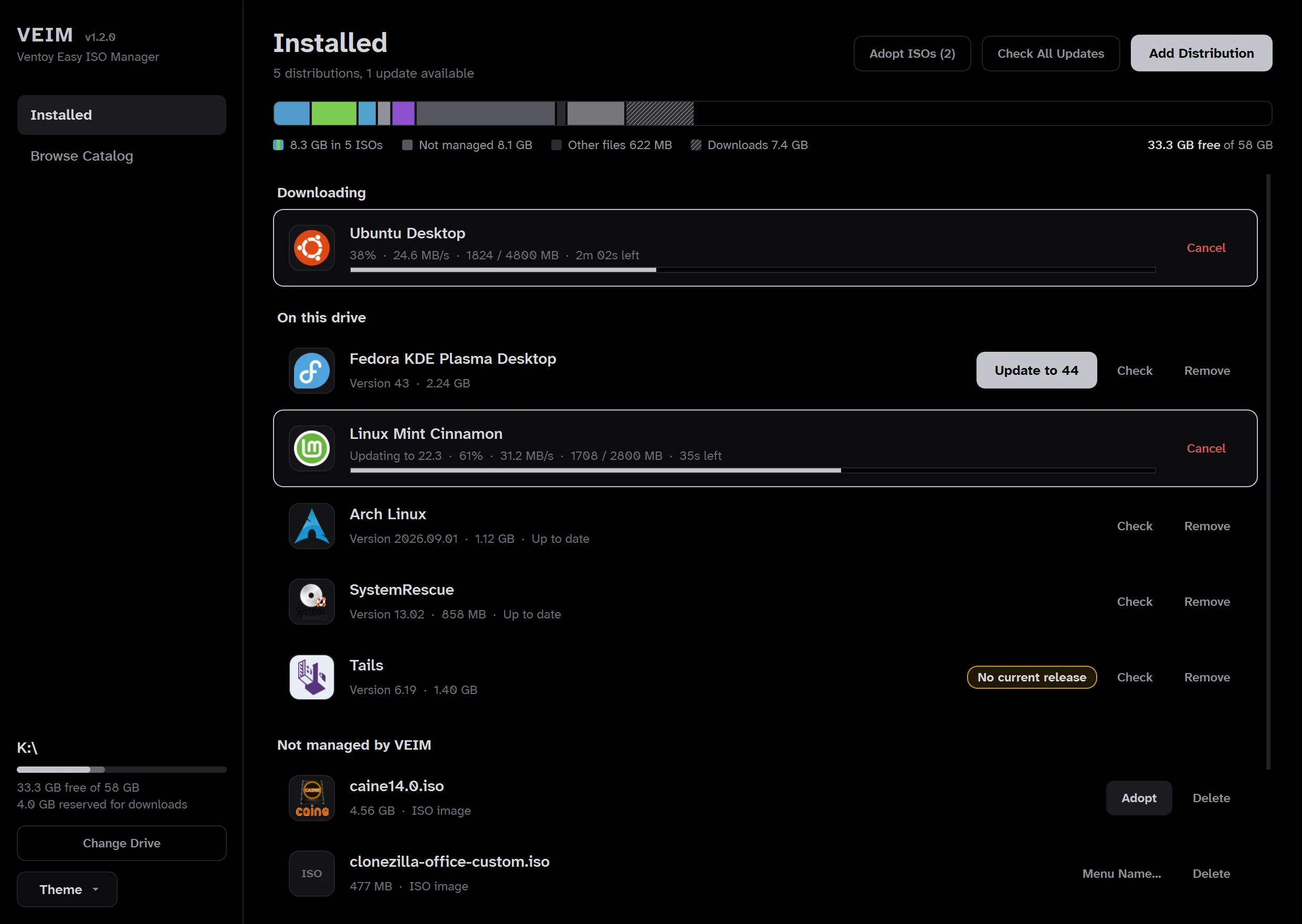
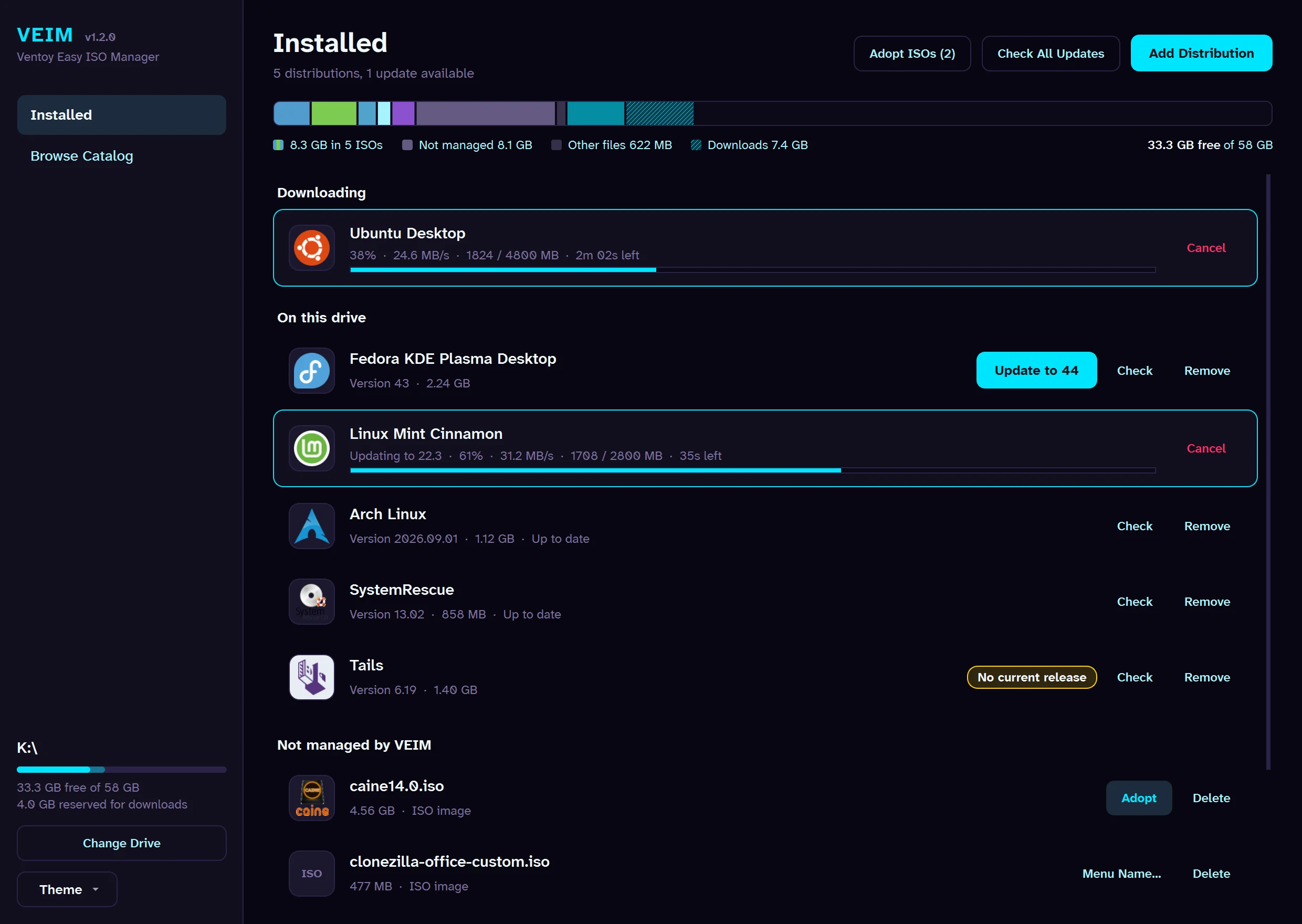
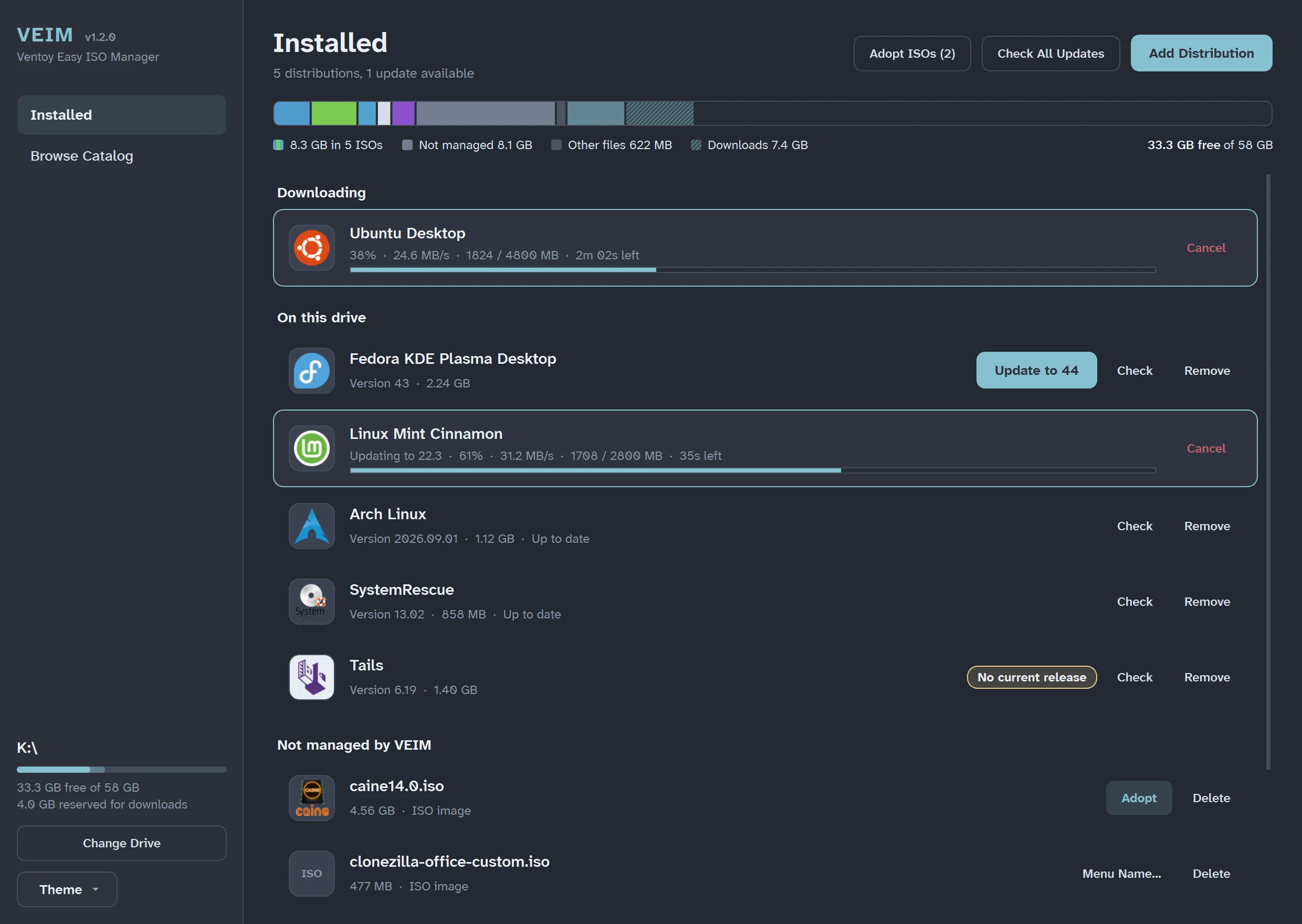
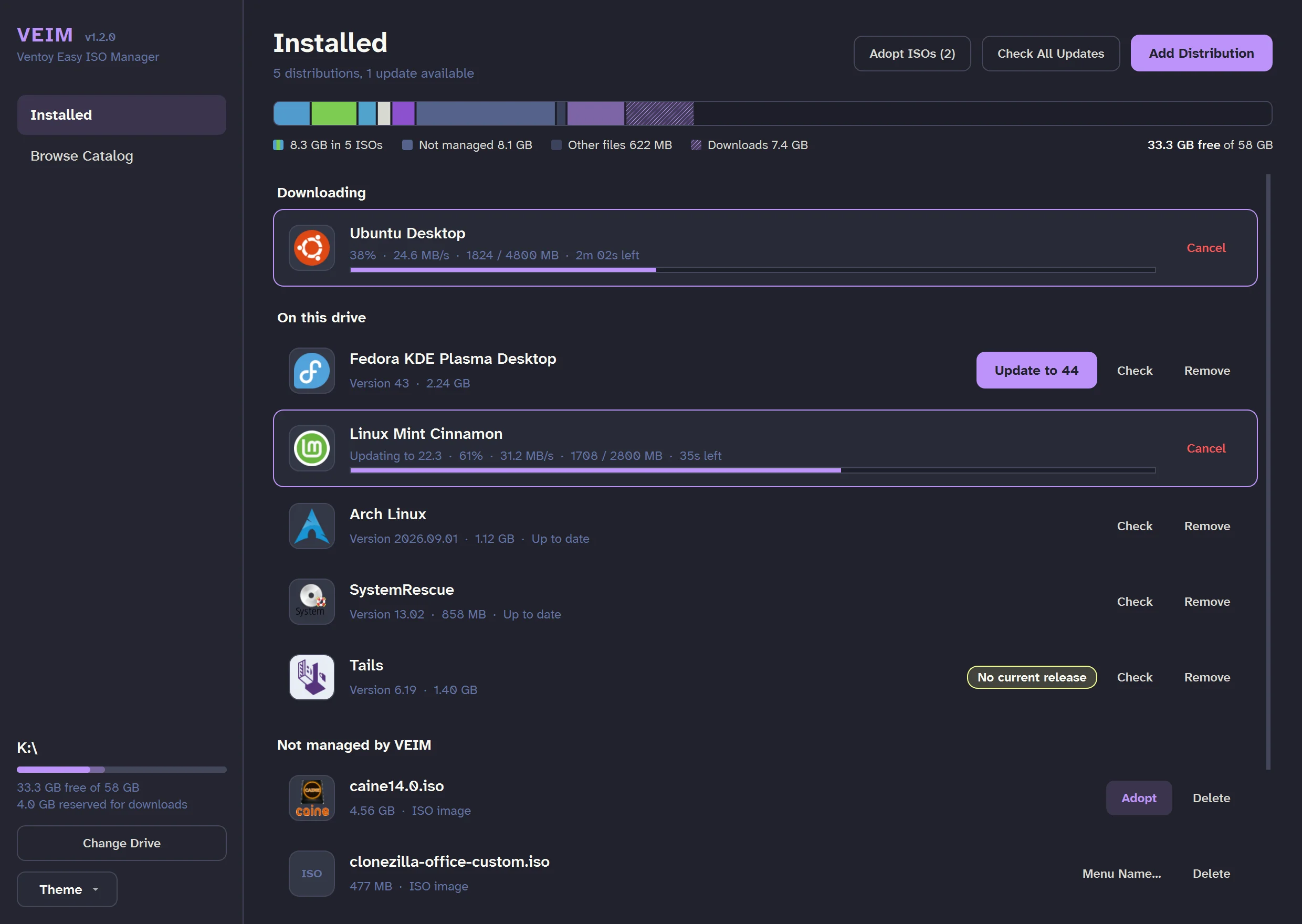
Eight themes, picked from Theme at the bottom of the sidebar — or System Match, which uses Clean Light or Dark Modern to match your desktop, and switches when the desktop does.
Run from source
Python 3.10 or newer. Use a virtual environment: most Linux distributions refuse a system-wide pip install ("externally-managed-environment").
git clone https://github.com/Cir0cuit/VEIM
cd VEIM
python3 -m venv .venv
source .venv/bin/activate        # Windows: .venv\Scripts\activate
pip install -r requirements.txt
python main.py
On Linux, Qt needs a few X11 libraries that some desktops leave out. Without them it stops with Could not load the Qt platform plugin "xcb":
# Debian, Ubuntu, Linux Mint, Pop!_OS
sudo apt install python3-venv libxcb-cursor0 libxcb-icccm4 libxcb-image0 \
    libxcb-keysyms1 libxcb-render-util0 libxkbcommon-x11-0 libegl1

# Fedora
sudo dnf install xcb-util-cursor xcb-util-wm xcb-util-image \
    xcb-util-keysyms xcb-util-renderutil libxkbcommon-x11

# Arch, Manjaro, EndeavourOS
sudo pacman -S xcb-util-cursor xcb-util-wm xcb-util-image \
    xcb-util-keysyms xcb-util-renderutil libxkbcommon-x11
QT_DEBUG_PLUGINS=1 python main.py names any other library that is missing. The contributing guide covers the test suite, the code layout, adding a distribution or a theme, and how the installers are built.
MIT licensed. Distribution names and logos are trademarks of their respective projects and are used only to identify them; if you fork and redistribute VEIM, check each project's trademark policy.