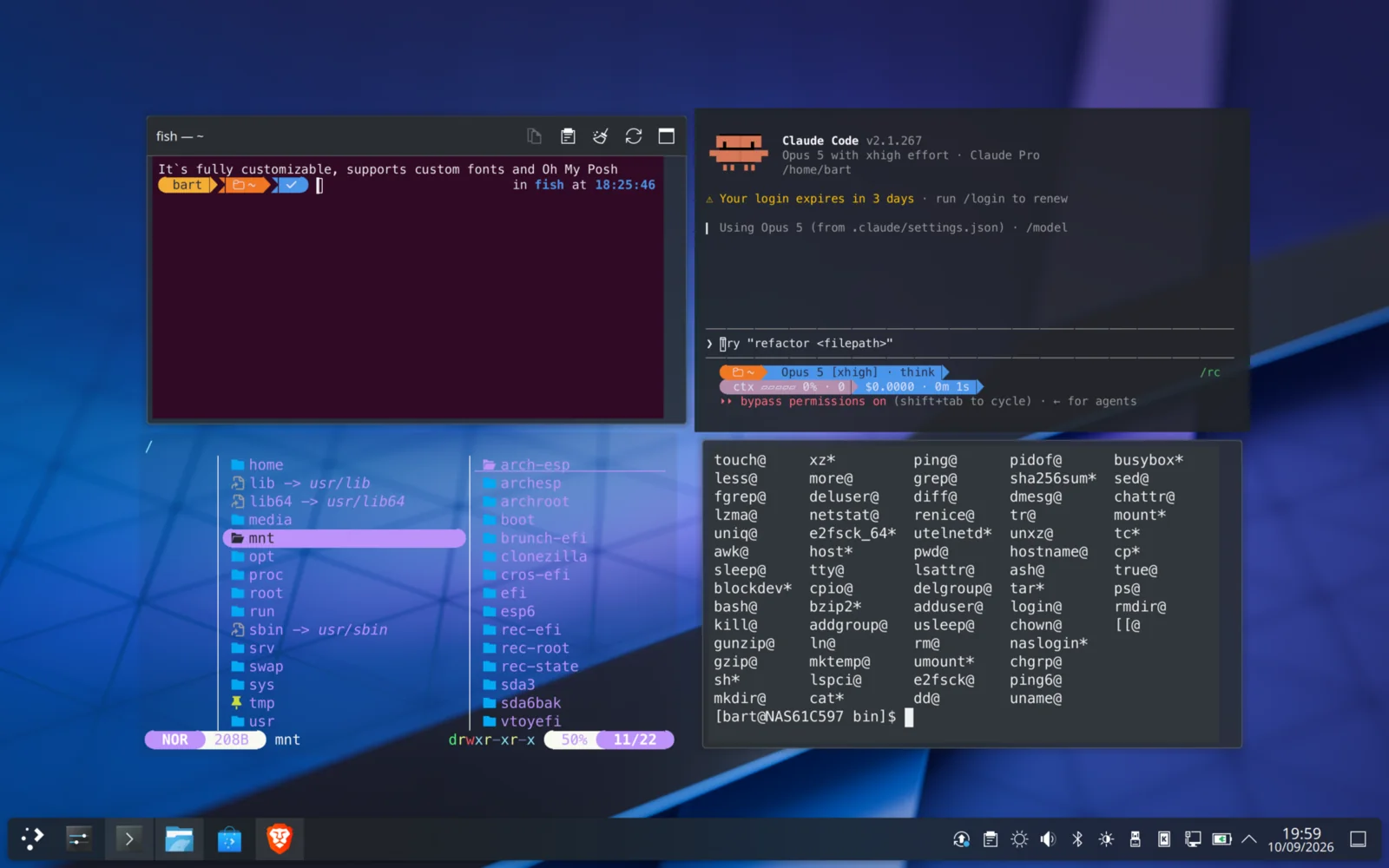
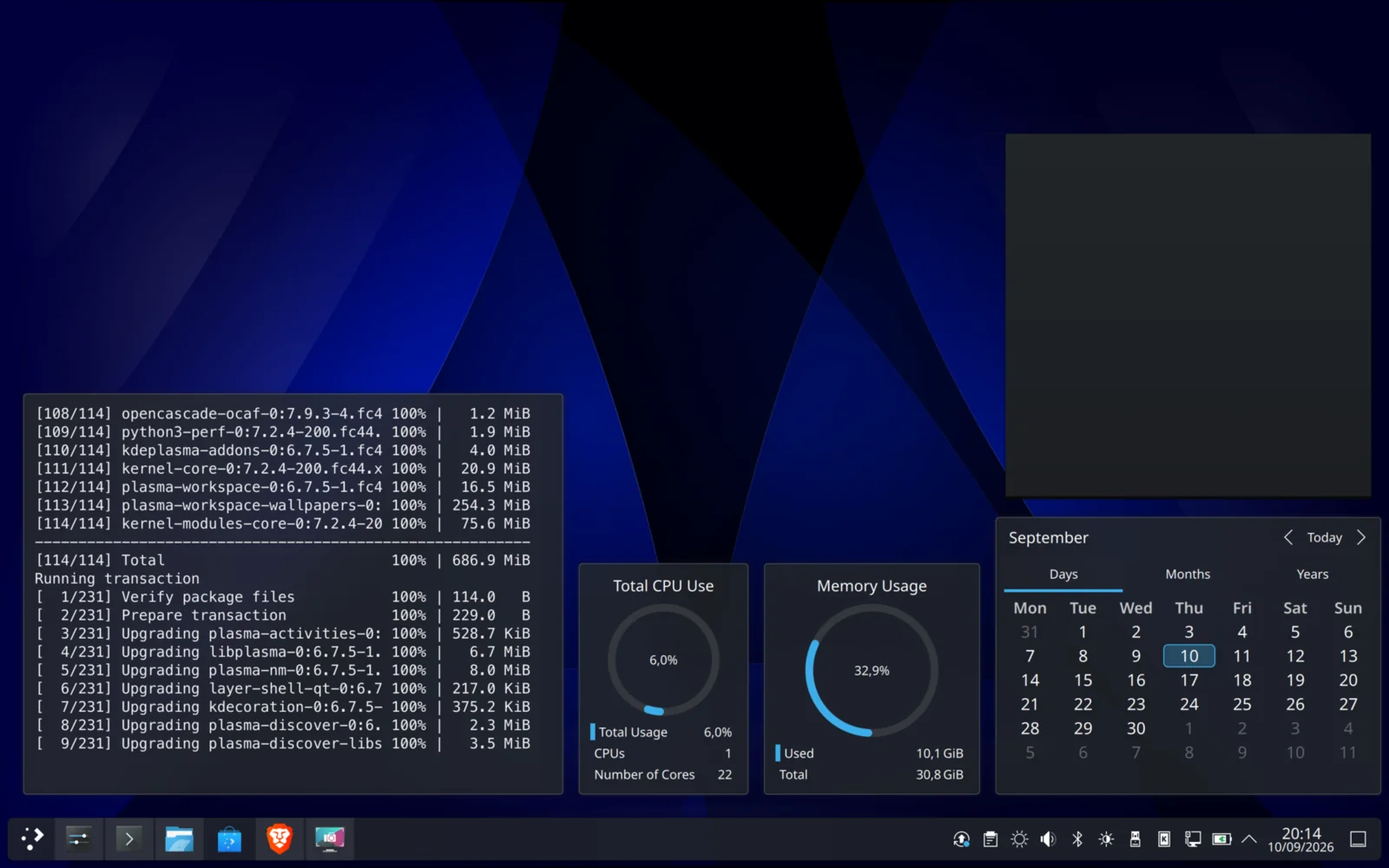
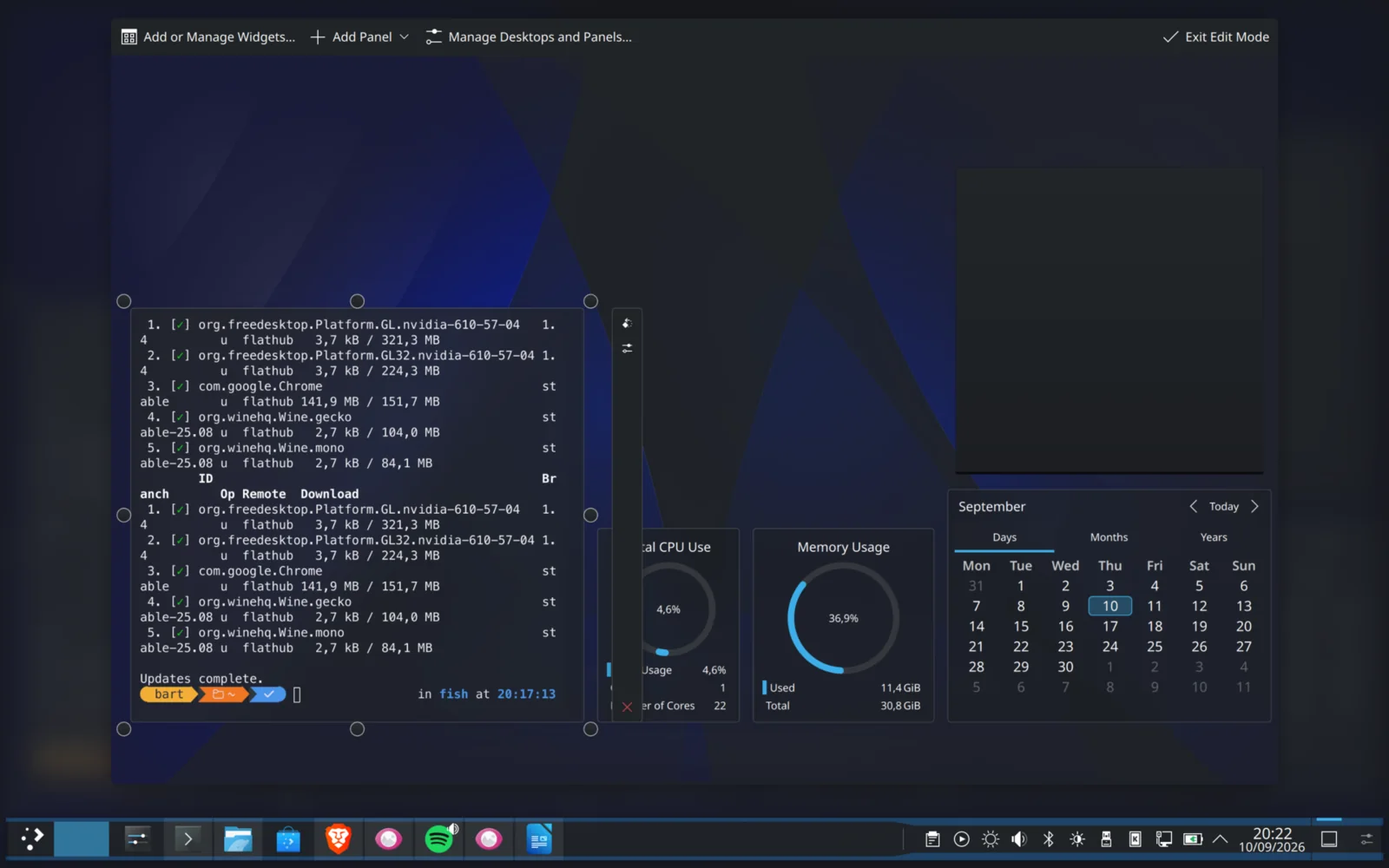
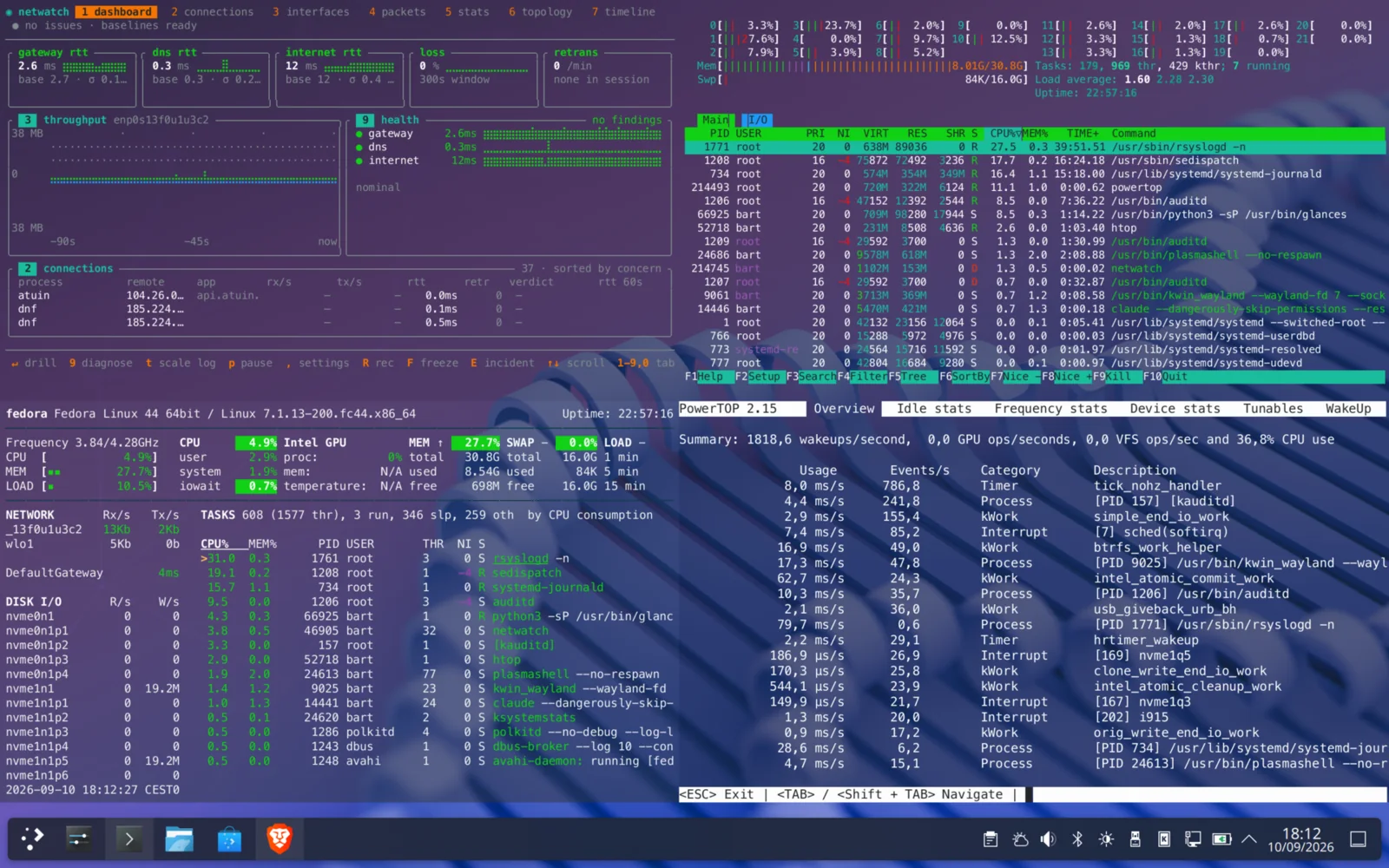
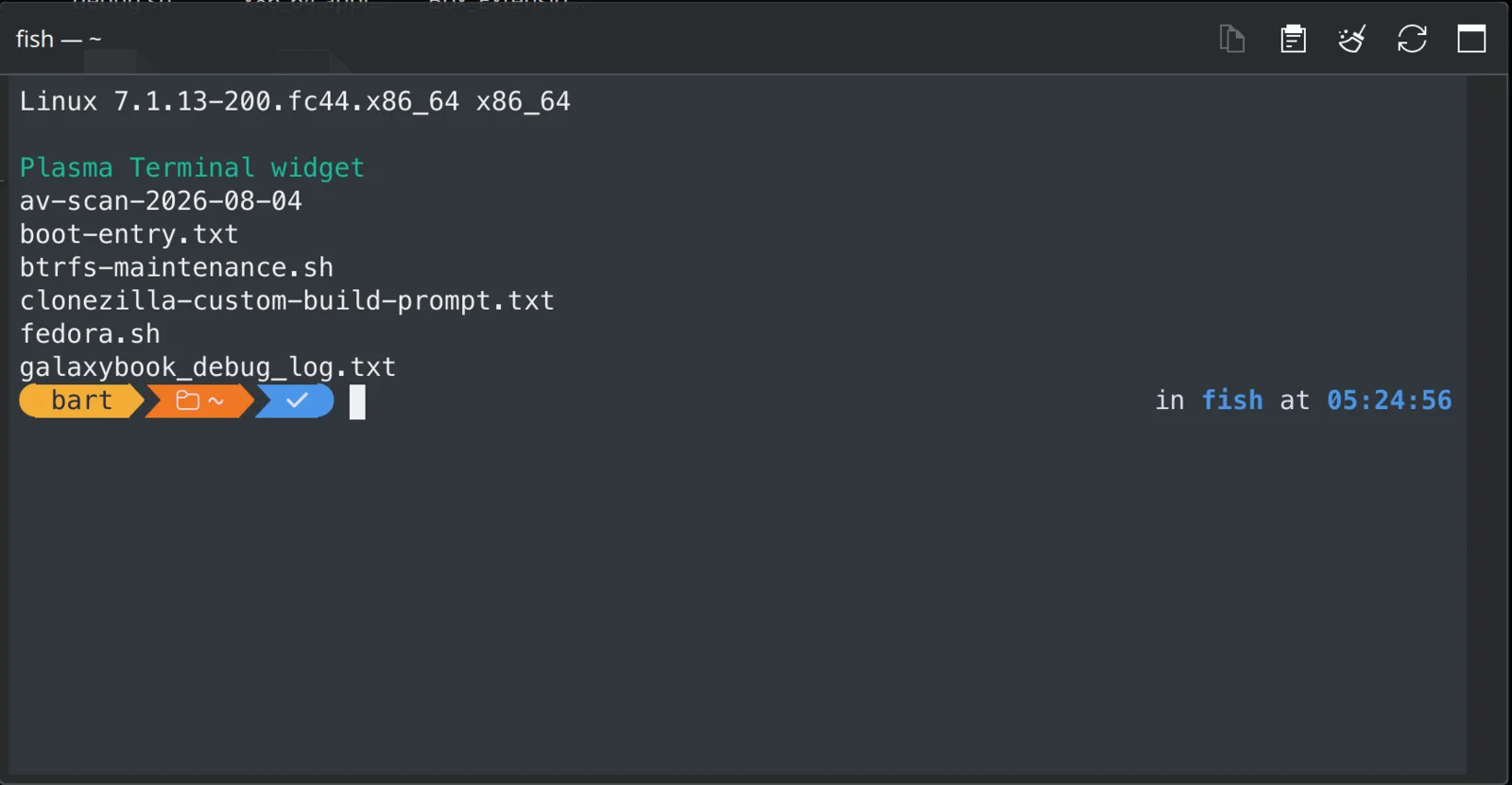
A real terminal emulator that lives on the desktop as an ordinary Plasma widget.
Drag it, resize it, put it behind your icons, give it the colours and font you already use — it behaves like the rest of your desktop, because it is drawn by the shell itself.
How it works
The terminal view is a QQuickPaintedItem, so it is a first-class item in plasmashell's own scene graph. That has a few practical consequences:
- it moves, resizes and clips with the applet, and stacks correctly against other widgets;
- it paints at the screen's device pixel ratio, so text stays crisp on HiDPI displays;
- it uses the ordinary Qt clipboard and the ordinary Qt input path, so selection, copy, paste and keyboard handling work the way they do in any other Qt application.
There is no helper process, no embedded window and no second compositor: the widget owns a pty directly and paints the characters itself.
Install
The widget has two halves. The terminal itself is a compiled QML module that has to sit on Qt's own import path, which only root can write to; the applet package is per-user. Build it once.
Dependencies
Install these first — the build fails without them. You need CMake 3.20 or newer, a C++ compiler, Qt 6.5 or newer (Core, Gui, Qml, Quick, Widgets and Core5Compat) and the KDE Frameworks 6 libraries KCoreAddons and KPty. kpackagetool6 is part of Plasma 6 itself, so it is already there on any machine that can run the widget.
Fedora
sudo dnf install cmake gcc-c++ qt6-qtbase-devel qt6-qtdeclarative-devel \
    qt6-qt5compat-devel kf6-kcoreaddons-devel kf6-kpty-devel
Debian and Ubuntu — on a release new enough to ship Plasma 6 (24.04 or later)
sudo apt install cmake build-essential qt6-base-dev qt6-declarative-dev \
    qt6-5compat-dev libkf6coreaddons-dev libkf6pty-dev
Arch
sudo pacman -S --needed base-devel cmake qt6-base qt6-declarative qt6-5compat \
    kcoreaddons kpty
Build
git clone https://github.com/Cir0cuit/plasma-terminal-widget.git
cd plasma-terminal-widget
./install.sh
systemctl --user restart plasma-plasmashell.service
install.sh configures and builds the project, then installs both halves — the QML module as root, onto whichever import path Qt reports for your distribution, and the applet with kpackagetool6 for the current user only. It asks for your password once, for the first of those.
Then add it from the desktop context menu: Add Widgets… → Terminal. ./uninstall.sh removes everything again.
Get New Widgets can only deliver the applet half — it unpacks a QML archive into your home directory, and nothing it writes lands on plasmashell's import path. Installed that way the widget appears and tells you the engine is missing, with a link back to the build instructions above. It is not broken; it just needs the one build step.
Settings
Appearance — follow your Konsole profile font or pick a family and size, line spacing, colour scheme (a set ships with the widget, and any schemes Konsole already has installed are listed too) with a live preview swatch, widget background (Plasma frame / translucent / none), terminal opacity, padding, cursor shape, blinking cursor, full-height cursor, bold-as-intense, glyph antialiasing, title-and-toolbar strip, scrollbar and scrollbar auto-hide.
Shell — program and arguments, working directory, a command to run at startup, start-on-load, scrollback lines or unlimited, flow control, and extra environment variables.
Behavior — focus on click, copy on select, middle-click paste, Ctrl+wheel zoom, word characters for double-click selection, built-in clipboard shortcuts, read-only mode, terminal bell, and what to do when the shell exits.
Leaving the font and colour scheme unset means follow my default Konsole profile, so the widget matches the terminal you already use.
Keys and mouse
| Input | Action |
|---|---|
| Ctrl+Shift+C / V | copy / paste |
| Ctrl+Shift+ + / − / 0 | zoom in / out / reset |
| Ctrl+wheel | zoom |
| wheel | scroll the scrollback |
| double click | select a word |
| right click | context menu |
| middle click | paste the selection (off by default) |
| drag files onto it | insert their paths, quoted where the shell needs it |
The keyboard shortcuts and Ctrl+wheel zoom are the widget's own, and each can be turned off under Behavior if the program in the terminal wants those keys instead. Everything else goes straight to the shell. The optional strip along the top shows the session title and buttons for copy, paste, clear-and-reset, restart and Open in Konsole, which hands the current working directory to a real Konsole window.
What it is built on
The terminal emulation is Konsole's, by way of QMLTermWidget and KDE's qmlkonsole, which this project vendors and builds on — thanks to Lars Doelle, Robert Knight, Dmitry Zagnoyko, Jonah Brüchert and everyone else who has worked on them. All the hard work of terminal emulation is theirs; this project provides the Plasma widget around it. Licensed GPL-2.0-or-later, following that code, with every local modification listed in the README.
How it was built, and what has been tested
This widget was written with an AI coding agent doing the implementation, under human direction and review. That is a statement of fact rather than an excuse, but it comes with limits worth stating plainly, so here is what has actually been run.
It has been built, installed and used on four distributions:
- Fedora 44 — Plasma 6.7.5 on Wayland, Qt 6.11.2, GCC 16.2. The development machine, and the one with by far the most hours on it.
- Debian — Plasma 6.7.4 on Wayland, with the module landing on Debian's multiarch QML path rather than Fedora's
lib64. - Arch — Plasma 6.6.5 on Wayland, Qt 6.11.1, GCC 16.1: an older Plasma and a newer compiler than this code was written against.
- Ubuntu — with the Debian package names above.
On each of them the dependency line installs, the build is clean, the module lands on that distribution's own import path, and plasmashell loads it with the widget running a live shell. Fedora is where the detail work was checked: sessions start and stop, input and clipboard go through the real event path, teardown leaves no stray shell processes, and the widget survives being moved, resized and reconfigured on a live desktop.
What has not been tried is X11, fractional or 1× scaling, multiple monitors, and most of the settings in combination with one another. If it misbehaves, the useful bug report is the one that says what your setup was.